Download BarTender Label Templates for Warehouse and Inventory Workflows
Browse ready-to-use BarTender label template examples for warehouse, inventory, receiving, item identification, smart barcode scanning, barcode symbology testing, and material labeling. Each template includes a downloadable BarTender template and a matching Functional Specification Document.
BarTender Label Template Library
This BarTender label template library helps warehouse, inventory, receiving, and operations teams review common barcode label layouts before creating their own production label formats. The examples include QR code labels, smart QR code labels, linear barcode labels, Data Matrix control blocks, static field captions, dynamic data fields, and human-readable label text.
Available BarTender Label Templates
Each label template is displayed in its own block. Download the BarTender template first, then download the Functional Specification Document for layout and field details.
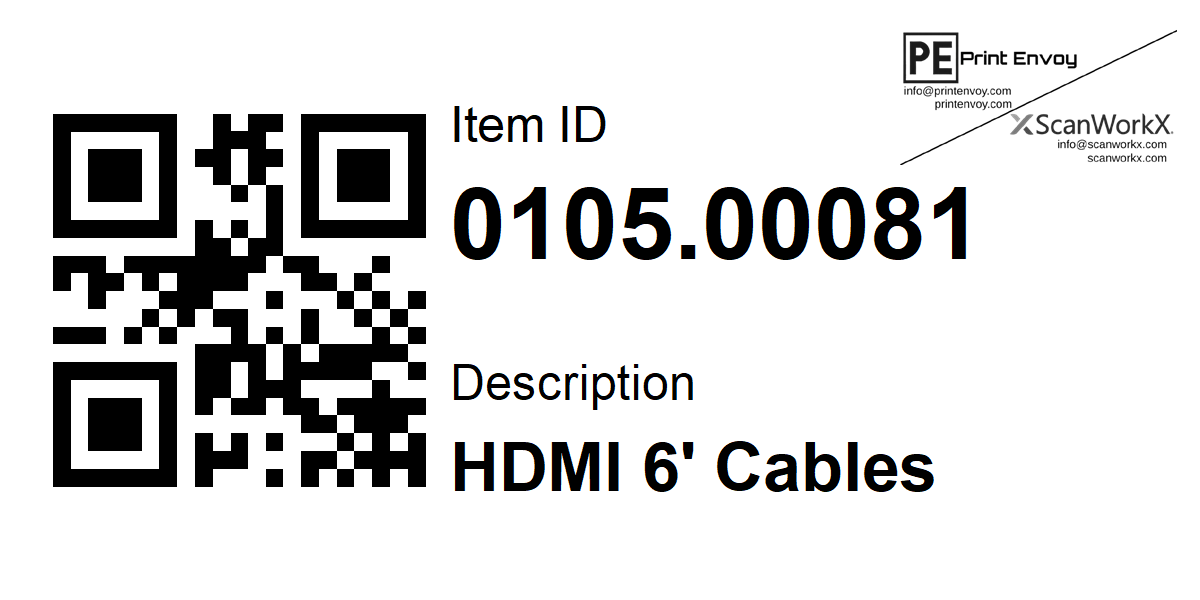
Item Label with QR Code
A compact item identification label for products, parts, components, or materials that need both human-readable item information and scannable QR code data.
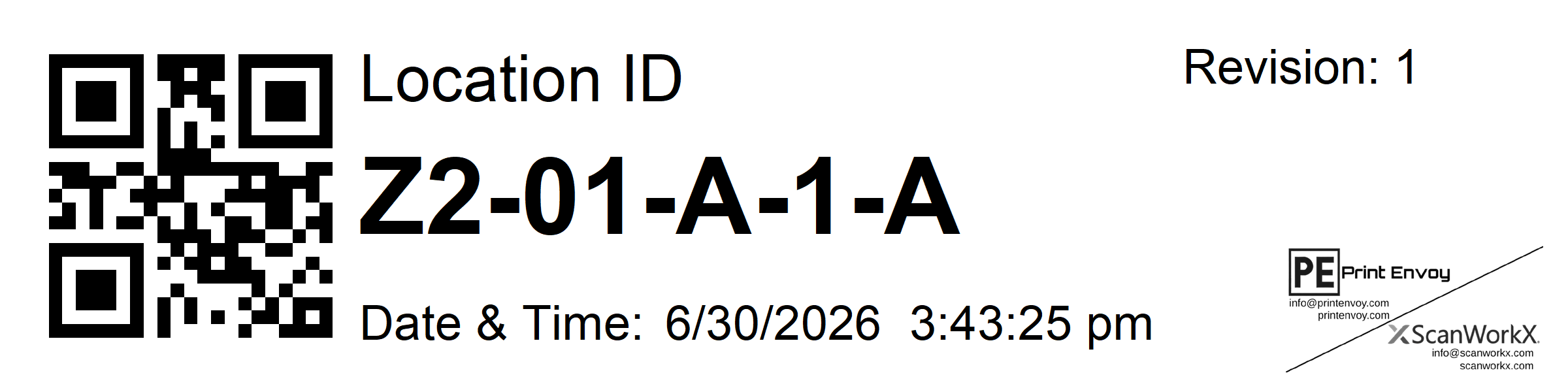
Warehouse Location Label with QR Code
A warehouse location label for bins, racks, shelves, staging areas, and storage positions that need visible location text and scannable barcode data.
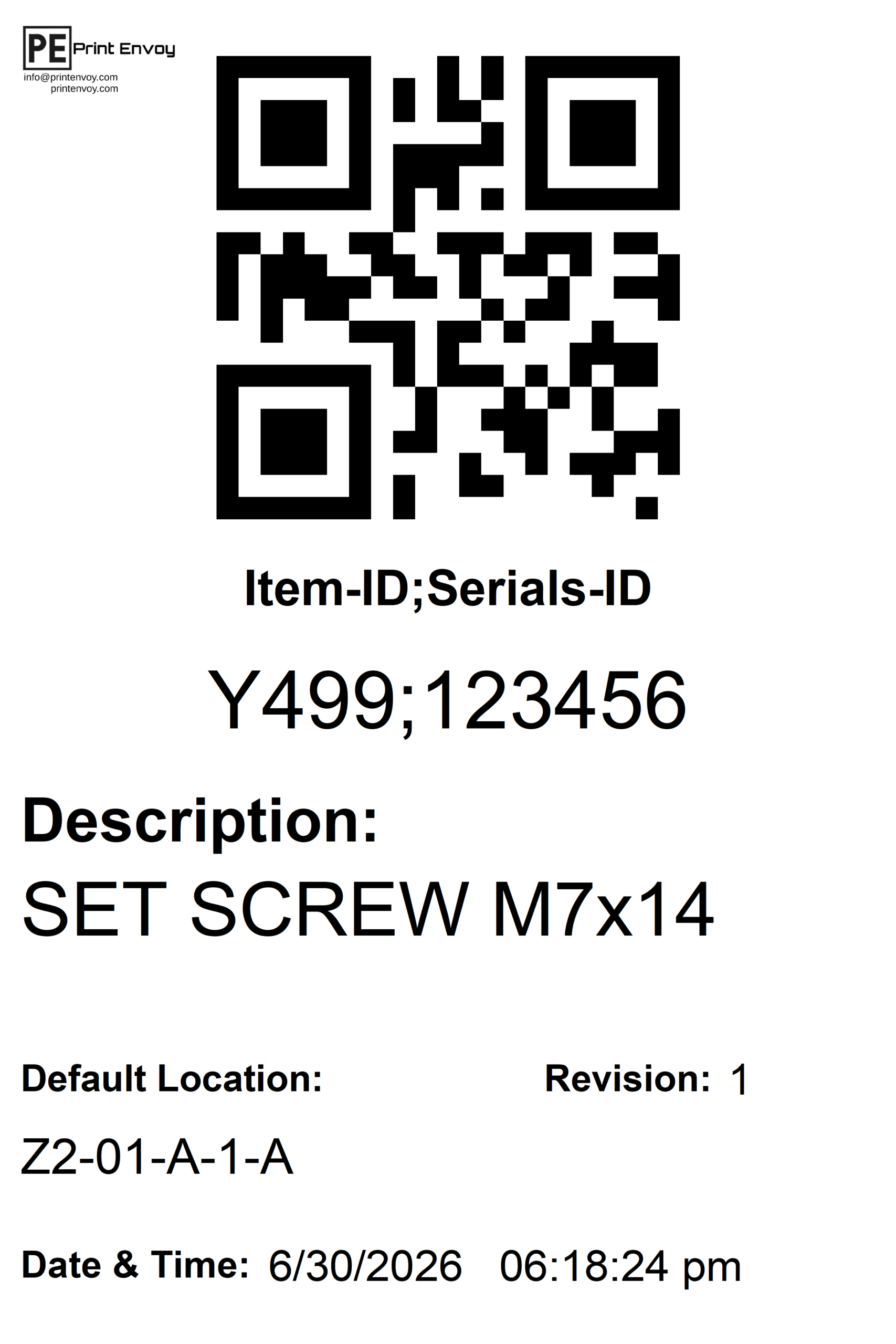
Receiving Serialized Item Label with Smart QR Code
A receiving label for serialized items where one smart QR code can contain multiple values, such as Item ID and Serial ID, to help populate matching receiving fields.
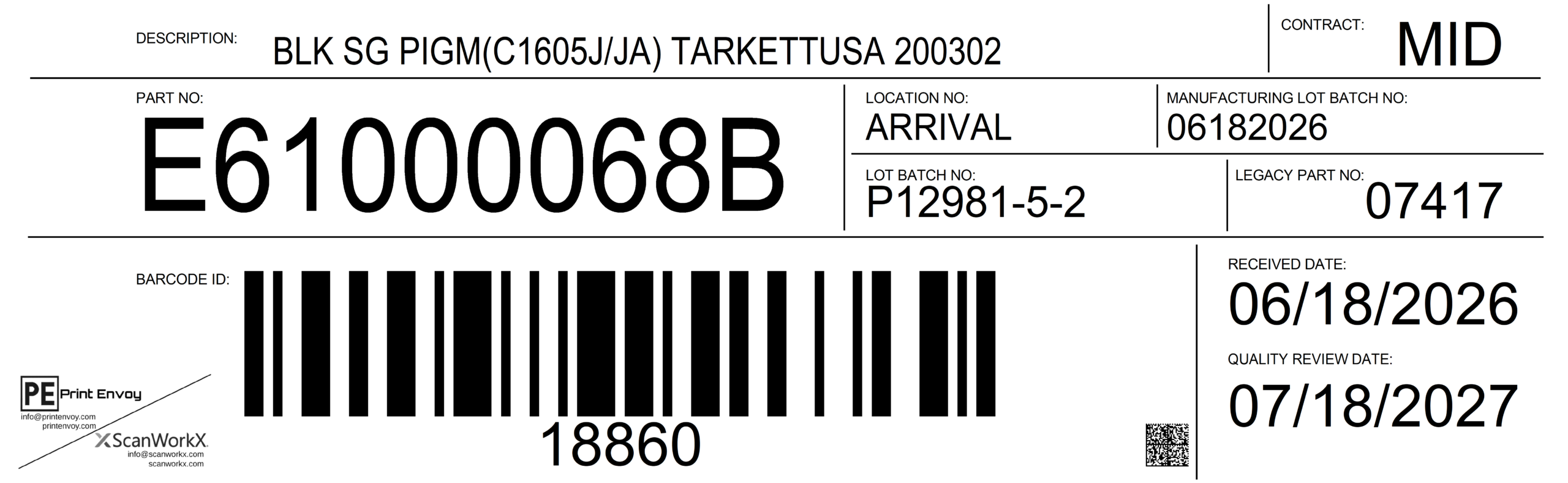
Receiving Material Label
A larger receiving material label for item, lot, location, contract, receiving date, quality review date, barcode ID, and label control information.
How to Customize These BarTender Label Templates
Use the steps below to change barcode symbologies, update barcode settings, create data sources, and connect fields to text or barcode objects in BarTender Designer.
How to Change Barcode Symbologies
Barcode symbology controls the barcode type, such as Code 128, QR Code, Data Matrix, GS1-128, or Code 39. Change the symbology when the label needs a different scan format, business requirement, or scanner workflow.
- Open the BarTender template file in BarTender Designer.
- Select the barcode object on the label.
- Double-click the barcode, or right-click it and choose Properties.
- Open the Symbology and Size property page.
- Choose the required barcode symbology, such as Code 128, QR Code, or Data Matrix.
- Review barcode size, density, human-readable text, error correction, and quiet zone settings.
- Update the sample data and confirm the barcode still scans correctly.
- Print a test label and scan it with the device used in the actual warehouse or receiving process.
How to Create and Link a Data Source
A data source controls what value prints on a text object, barcode object, or encoder object. Data can come from embedded data, a database field, a named data source, a file, or another connected data source.
- Open the BarTender template file in BarTender Designer.
- Select the text object or barcode object that should receive dynamic data.
- Double-click the object, or right-click it and choose Properties.
- Open the Data Sources section for that object.
- Choose whether the object should use embedded data, a database field, a named data source, or another available source.
- To connect a database or file, use BarTender’s database connection tools and select the table or file that contains the label data.
- Map the correct field to the label object, such as Item ID, Description, Location ID, Serial ID, Lot Number, Barcode ID, or Date & Time.
- Preview the label with sample records to confirm that each field prints in the correct place.
- Save the template and complete a test print before publishing it for production use.
Label Color Marking Guide
The Functional Specification Documents use color markings to explain how each label area works. These colors make the template easier to review, train, document, and modify.